
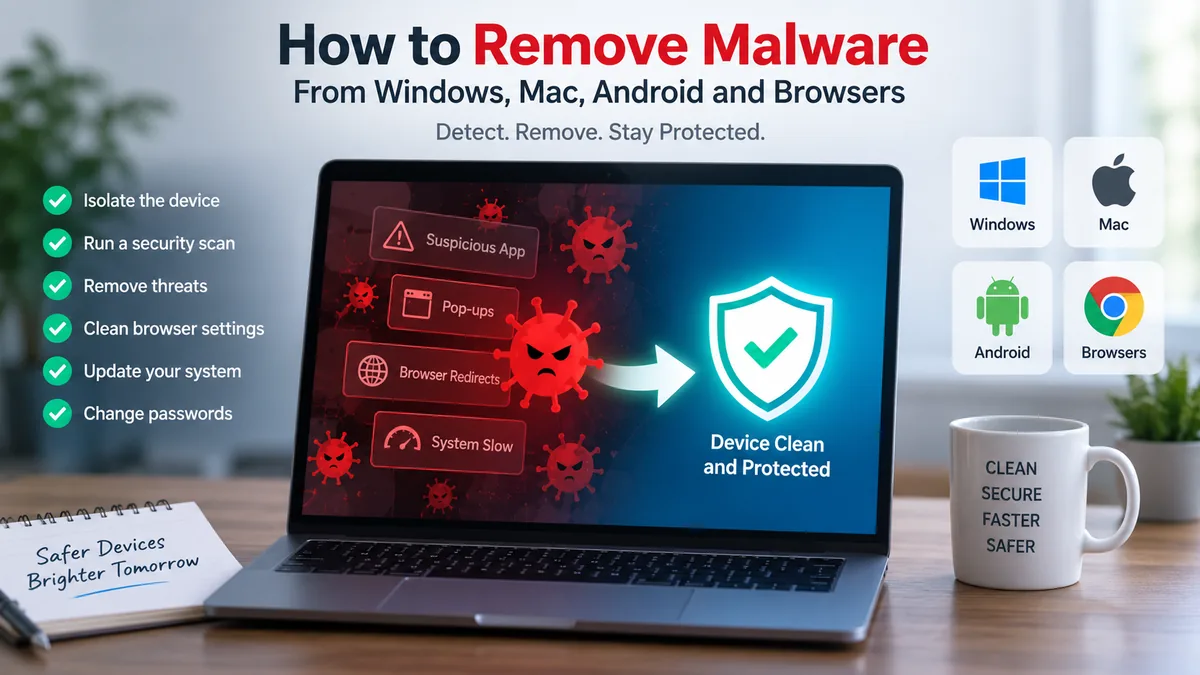

Malware can hide behind pop-ups, suspicious apps, browser redirects, unexplained slowdowns, or changes you never made. Some infections are merely disruptive; others can steal passwords, monitor activity, encrypt files, or give an attacker access to a device.
The safest way to remove malware is to isolate the affected device, run an updated full security scan, quarantine or remove detected threats, uninstall suspicious software, clean compromised browser settings, scan again, update the system, and change exposed passwords from a clean device. Persistent infections may require an offline scan, reset, or clean operating-system reinstall.
This guide explains how to remove malware from Windows PCs, Macs, Android devices, and web browsers while reducing the chance that an infection survives the cleanup.
What Is Malware?
Malware—short for malicious software—is a broad category of software intentionally created to compromise devices, information, or networks.
A computer virus is therefore not synonymous with malware. A virus is one type of malware.
Common categories include:
| Malware type | What it commonly does |
|---|---|
| Virus | Infects files and can spread when infected content runs |
| Trojan | Disguises malicious functionality as legitimate software |
| Spyware | Secretly collects information or monitors activity |
| Ransomware | Encrypts or locks data and demands payment |
| Adware | Generates unwanted advertising and may track browsing |
| Worm | Spreads between systems or networks |
| Rootkit | Attempts to maintain privileged, concealed access |
| Keylogger | Records keystrokes, potentially including credentials |
| Browser hijacker | Changes searches, homepages, extensions, or redirects |
The removal procedure varies because these threats behave differently. Deleting one suspicious file may solve a simple unwanted-program problem but isn’t enough to establish that a deeply embedded infection is gone.
How to Tell If Your Device Has Malware
Malware doesn’t always announce itself. Modern malicious software can deliberately remain quiet to avoid detection.
Still, several warning signs deserve investigation.
Common symptoms of malware
Watch for:
- unexplained slow performance
- frequent freezes or crashes
- excessive pop-ups
- unfamiliar programs
- new browser extensions you didn’t install
- changed homepage or default search engine
- repeated redirects to unfamiliar websites
- unusually high network or data activity
- security software unexpectedly being disabled
- files disappearing or changing
- unexplained storage usage
- unfamiliar processes
- fake virus warnings
- unexpected login or account activity
Google specifically lists persistent pop-ups, unwanted extensions, unexpected search-engine or homepage changes, redirects, and infection alerts among signs that unwanted software may be present.
However, symptoms alone don’t prove that you have malware. Hardware problems, low disk space, buggy applications, damaged operating-system files, and legitimate background processes can produce similar behavior.
A security scan provides stronger evidence.
how to remove malware Safely: The Core Process
For a personal computer, the cleanup process can be reduced to several stages:
- Isolate the device if compromise is suspected.
- Preserve essential personal data carefully.
- Run reputable security scans.
- Quarantine or remove detected threats.
- Remove suspicious programs and browser components.
- Use an offline or Safe Mode scan when necessary.
- Scan again.
- Update the operating system and applications.
- Secure passwords and important accounts.
- Reset or reinstall the operating system if you cannot establish that the machine is clean.
Here is how each stage works.
Step 1: Disconnect a Seriously Infected Device From the Internet
If you have strong evidence of an active compromise, disconnect the device from networks while you investigate.
Turn off Wi-Fi or unplug its Ethernet connection.
Isolation can interrupt malware that is attempting to communicate with remote infrastructure or other systems. Malware-removal guidance commonly recommends disconnecting infected computers during cleanup.
This is especially sensible when you notice signs such as unexplained remote control, credential theft, rapidly changing files, or an active ransomware incident.
There is an important practical complication: modern security products may require internet access to download current malware definitions or use cloud-based detection. If you need updates, obtain them safely according to the security vendor’s instructions rather than browsing normally on a suspected compromised machine.
Avoid sensitive activity during cleanup
Until you trust the device again, don’t use it for:
- online banking
- payment accounts
- primary email
- password-manager access
- cryptocurrency accounts
- work administration
- changing important passwords
If malware includes an information stealer or keylogger, entering a new password on the infected computer could expose the replacement credential too.
Step 2: Back Up Important Personal Files Carefully
Before aggressive cleanup, protect irreplaceable data such as photos, documents, and project files.
But don’t blindly copy everything.
Backing up executable files, unknown installers, scripts, pirated applications, or suspicious archives can potentially preserve the source of an infection.
Where possible, prioritize ordinary personal documents and media and scan the backup before restoring it.
If you already maintain known-good backups from before the infection, those can be especially valuable. Microsoft recommends restoring from backups generated before an infection where possible when malware has caused irreversible system changes.
For ransomware, preserve backups carefully and avoid allowing an infected system to overwrite or encrypt otherwise clean backup copies.
Step 3: Run a Full Antivirus or Anti-Malware Scan
Next, use a reputable, updated security product.
Don’t assume that a quick scan is sufficient for a machine showing meaningful signs of compromise. Run a full system scan when available.
The scanner may identify malicious:
- executables
- scripts
- startup entries
- potentially unwanted programs
- browser components
- downloaded files
- persistence mechanisms
Security products typically offer options to quarantine, clean, or delete detected items.
What does quarantine mean?
Quarantine isolates a suspicious or malicious item so that it cannot operate normally while preserving it for review.
This is useful when you’re uncertain whether a detection is legitimate.
Don’t casually restore a quarantined item simply because an application stops working afterward. Confirm that the detection is a false positive before restoring anything.
Step 4: Remove Suspicious Programs
Review applications installed around the time your problems started.
On Windows, you can inspect installed applications through Settings > Apps > Installed apps. Google also recommends removing programs you don’t recognize when troubleshooting unwanted Chrome behavior.
Look particularly closely at:
- software you don’t remember installing
- recently installed programs from untrusted sources
- fake utilities or cleaners
- unknown browser assistants
- suspicious download managers
- programs with misleading names
Don’t delete unfamiliar Windows or macOS system files simply because you don’t recognize them. Many legitimate operating-system components have technical names.
Let security software handle confirmed malicious system files whenever possible.
Step 5: Use Safe Mode When Malware Interferes With Removal
Some malicious software starts automatically with the operating system and can interfere with scanners or removal attempts.
Safe Mode starts the device with a more limited set of software and services. That can make certain infections easier to diagnose or remove.
A common malware-removal workflow therefore combines Safe Mode with a full security scan.
Safe Mode isn’t itself a malware-removal tool, however. It simply provides a restricted environment that may stop unwanted components from starting.
Run your trusted scanner once you’re in the appropriate troubleshooting environment.
Step 6: Use Microsoft Defender Offline for Persistent Windows Malware
If a Windows infection keeps returning or normal scans cannot remove it, an offline scan is particularly useful.
Microsoft Defender Offline restarts the PC and scans outside the normal Windows environment. This makes it harder for active malware to hide from or interfere with the scanner.
Microsoft’s current guidance provides Microsoft Defender Offline scan through Windows Security’s scan options and notes that the PC restarts before the scan begins. Save your work first.
An offline scan is worth considering when:
- malware repeatedly returns after removal
- normal scans fail
- security tools behave strangely
- you suspect persistent malware
- suspicious behavior continues after an ordinary full scan
Afterward, boot normally and run another updated scan.
Step 7: Clean Browser Malware and Unwanted Extensions
Sometimes the operating system isn’t the main problem. The browser has been hijacked.
Typical symptoms include:
- search redirects
- changed homepage
- unfamiliar toolbar
- unwanted notifications
- extensions that return
- excessive advertising
- fake security alerts
Remove suspicious extensions
In Chrome, review installed extensions through the extension manager and remove anything you don’t recognize or no longer trust.
Google notes that if a corrupted extension continues to have problems, suspicious software on the computer may be modifying the extension’s files.
Also inspect extensions in Edge, Firefox, Safari, or any other browser you regularly use.
Check site permissions
A website notification can sometimes look surprisingly similar to malware.
A malicious or deceptive website may have been granted permission to send notifications. That can result in alarming messages such as:
Your computer is infected!
The notification itself does not necessarily mean the operating system contains malware.
Review browser notification permissions and remove unfamiliar or unwanted websites.
Reset changed browser settings
Check:
- homepage
- startup pages
- default search engine
- extensions
- site permissions
- downloads
- proxy-related changes
Google recommends removing unwanted programs before resetting browser settings when Chrome is affected.
Clearing cookies and cached data can also help clean up unwanted browser data, although clearing the cache alone should never be treated as a substitute for scanning an infected computer.
how to remove malware From Windows 10 or Windows 11
Windows users can follow this practical sequence:
- Disconnect the PC if an active compromise is suspected.
- Save essential personal files carefully.
- Open Windows Security.
- Check Virus & threat protection.
- Update security intelligence if needed.
- Run a full scan.
- Quarantine or remove confirmed threats.
- Uninstall suspicious applications.
- Inspect browsers and extensions.
- Use Safe Mode if malware interferes with normal cleanup.
- Run Microsoft Defender Offline for persistent infections.
- Restart Windows.
- Scan again.
- Install Windows and application updates.
- Secure potentially exposed accounts from a clean device.
If malware has caused irreversible changes, Microsoft says resetting, restoring, or reinstalling Windows may be necessary.
Should you manually delete infected files?
Usually, not as your first approach.
Security software understands threat locations and may identify associated files, processes, configuration changes, or persistence mechanisms that aren’t obvious to a user.
Manually deleting the wrong Windows file can create a second problem without eliminating the malware.
how to remove malware From a Mac
Macs have built-in security protections, but that doesn’t make unwanted or malicious software impossible.
If a Mac appears compromised:
- Disconnect it from the network when appropriate.
- Quit suspicious or misbehaving applications.
- Review applications you recently installed.
- Remove applications you don’t recognize and have verified as unwanted.
- Inspect browser extensions.
- Check browser homepage and search settings.
- Run a reputable Mac-compatible security scan if warranted.
- Remove or quarantine confirmed threats.
- Restart the Mac.
- Update macOS and installed software.
- Scan again if suspicious behavior continues.
Google’s Mac instructions for unwanted software recommend checking Finder > Applications and moving unrecognized unwanted programs to Trash.
Don’t treat every unfamiliar process in Activity Monitor as malware. macOS contains numerous legitimate background services that may have unfamiliar names.
How to Remove Malware From Android
Android malware is frequently associated with malicious or deceptive applications, particularly software installed from questionable sources.
1. Start with suspicious apps
Review recently installed applications, especially those installed immediately before the symptoms began.
Warning signs include an app that:
- appeared unexpectedly
- requests excessive permissions
- produces persistent advertising
- redirects the browser
- cannot easily be removed
- came from an unknown APK source
2. Use Safe Mode when appropriate
On supported Android devices, Safe Mode temporarily prevents third-party apps from operating normally, making problematic apps easier to isolate.
Google’s malware troubleshooting guidance recommends rebooting into Safe Mode and removing recently downloaded apps one by one when investigating unwanted behavior.
The exact procedure varies by manufacturer and Android version.
3. Remove suspicious applications
Go to Settings > Apps and review installed applications.
Remove confirmed unwanted apps.
If an app refuses to uninstall because it has elevated administrator permissions, inspect the relevant security or device-administration settings. Be careful not to disable legitimate enterprise, parental-control, or security applications.
4. Scan the phone
Use Android’s available security protections and, when appropriate, a reputable mobile-security scanner.
A full scan can help identify malicious applications that aren’t obvious from their names or icons.
5. Clean the browser
If the problem consists mainly of redirects or pop-ups:
- review browser notifications
- remove suspicious site permissions
- clear relevant browsing data
- remove questionable downloads
- check browser settings
Then restart the phone and verify whether the symptoms return.
What About Malware on an iPhone?
iPhones work differently from conventional Windows or Android systems. Third-party antivirus applications don’t have unrestricted access to scan the entire iOS operating system in the same way a traditional desktop scanner can.
If an iPhone behaves suspiciously, investigate:
- unknown apps
- unexpected configuration profiles
- suspicious calendar subscriptions
- malicious websites
- browser data
- account compromise
- unexpected Apple Account activity
Update iOS to the latest compatible version and remove untrusted apps or configurations.
If there is strong evidence that the device itself remains compromised, a reset and carefully controlled restoration may be more appropriate than repeatedly installing supposed “cleaner” apps.
How Do You Know Malware Is Completely Removed?
One clean scan is encouraging, but it isn’t absolute proof.
Run another scan after cleanup and restarting the device.
Then verify that the original symptoms are gone.
Check whether:
- redirects have stopped
- unwanted extensions remain deleted
- suspicious programs haven’t returned
- security software remains enabled
- CPU and network behavior have normalized
- settings stay unchanged after restarting
- no new security detections appear
Malware can sometimes evade initial detection, and unusual network activity, unexplained files, changed settings, crashes, and missing information can be signs of an undetected infection.
Persistent symptoms justify deeper investigation rather than repeatedly deleting whatever looks unfamiliar.
What to Do After Removing Malware
Removing malicious files solves only part of the problem.
If malware had access to the device, assume that information entered or stored while the infection was active could have been exposed until you understand what the threat actually did.
Change important passwords from a clean device
Prioritize:
- primary email
- password manager
- banking and payment accounts
- Apple, Google, or Microsoft account
- social media
- work accounts
- shopping accounts containing payment information
Don’t reuse the old passwords.
Enable multi-factor authentication (MFA) wherever practical.
Sign out unknown sessions
Many major services show devices or sessions currently signed into an account.
Review these records and revoke sessions you don’t recognize. If a service offers an option to sign out everywhere, consider using it after changing the password.
Check financial accounts
If the infected device was used for banking or payments, review recent transactions.
Contact the relevant financial institution promptly if you identify unauthorized activity.
Update everything
Install current updates for:
- Windows or macOS
- Android or iOS
- browsers
- browser extensions
- productivity applications
- security software
- other frequently used programs
Security patches close vulnerabilities that malware can exploit.
When Should You Factory Reset or Reinstall?
A clean operating-system installation is more disruptive than an ordinary scan, so it isn’t the first step for every pop-up or suspicious extension.
It becomes much more reasonable when:
- malware keeps returning
- scanners cannot remove it
- system settings remain corrupted
- security tools won’t function correctly
- privileged access may have been compromised
- you cannot confidently establish that the system is trustworthy
Microsoft explicitly identifies resetting or reinstalling a PC as an option when malware has made irreversible changes.
Before resetting, preserve essential personal files carefully.
After reinstalling, fully update the operating system before restoring data and applications. Reinstall software from legitimate sources rather than restoring unknown installers from the infected system.
When Malware Removal Needs Professional Help
Some infections deserve escalation rather than prolonged experimentation.
Get qualified technical or organizational security assistance when:
- ransomware has encrypted important data
- a business computer is infected
- confidential customer information may be exposed
- the device handles sensitive organizational data
- malware returns after a reset
- an attacker appears to have remote control
- you suspect a rootkit or boot-level compromise
- multiple devices on the same network show symptoms
For a work device, follow your organization’s incident-response process. Don’t independently wipe the computer if doing so could destroy evidence that the security team needs.
Common Malware Removal Mistakes
The cleanup process often goes wrong because users react too quickly.
| Mistake | Better approach |
|---|---|
| Clicking a pop-up saying “Virus detected” | Close it and use trusted security tools |
| Downloading a random “virus cleaner” from an ad | Get security software from its legitimate source |
| Changing passwords on an infected device | Change them from a clean device |
| Assuming cache clearing removes all malware | Scan the entire device |
| Deleting unknown system files manually | Verify them or let security software handle detections |
| Running one quick scan and stopping | Run a full scan and verify afterward |
| Restoring every old file after reinstalling | Restore carefully from trusted backups |
| Ignoring browser extensions | Review extensions and site permissions |
| Assuming every slowdown means malware | Confirm with scanning and investigation |
One particularly dangerous mistake is trusting fake security warnings. Browser pages can imitate antivirus alerts and pressure you into downloading the very software you should avoid.
How to Prevent Malware From Coming Back
Good malware prevention is mostly about reducing opportunities for malicious software to execute.
Keep automatic updates enabled
Operating systems, browsers, and applications regularly receive security fixes.
Delaying patches unnecessarily leaves known vulnerabilities available for exploitation.
Download software from trusted sources
Be cautious with:
- cracked software
- pirated applications
- unofficial installers
- unknown APK files
- unexpected email attachments
- fake browser updates
- unsolicited “codec” downloads
An installer that appears free can carry adware, spyware, Trojans, or credential-stealing malware.
Keep security protection active
Use reputable security software and keep its definitions and components updated.
Real-time protection can block threats before they become established, while periodic scans provide another opportunity to detect unwanted files.
Be selective with browser extensions
Extensions can potentially access significant browsing information depending on their permissions.
Install only extensions you need, periodically review them, and remove abandoned or suspicious add-ons.
Maintain backups
Keep important data backed up independently of the primary device.
For particularly valuable information, having multiple backup copies—including a copy that isn’t continuously writable by the main computer—can reduce the damage from ransomware and hardware failure.
Can Malware Be Removed Without Antivirus Software?
Sometimes.
A simple unwanted application or browser extension may disappear after you uninstall the offending program, remove the extension, and restore changed settings.
But manual cleanup has a major weakness: you must know what you’re looking for.
Malware can consist of multiple files, startup mechanisms, scheduled components, configuration changes, and hidden processes. Dedicated security software is therefore generally safer than attempting to identify every malicious component manually.
For persistent Windows infections, an offline scanner provides another layer because malware has less opportunity to interfere while the normal operating environment isn’t running.
Can a Factory Reset Remove Malware?
A factory reset or clean operating-system reinstall can eliminate many infections because it removes applications and system modifications.
But treat restoration carefully.
If you reinstall the same malicious application, restore an infected file that can execute, or reintroduce a compromised configuration, the problem can return.
A safer sequence is:
Reset → update the operating system → enable security protections → reinstall trusted applications → scan backups → restore personal data.
This approach also forces you to reconsider what gets copied back onto the clean device.
Final Checklist for how to remove malware
When you need to know how to remove malware, focus on containment, detection, removal, verification, and account security—not just deleting the first suspicious file you find.
Start by isolating a seriously compromised device. Run an updated full security scan, quarantine confirmed threats, remove suspicious programs and browser components, and use Safe Mode or an offline scan when ordinary cleanup fails. Restart and scan again to verify the result.
Then deal with what malware may have exposed: update your software, change important passwords from a clean device, enable MFA, review active sessions, and watch sensitive accounts for unexpected activity.
If malware persists or you cannot confidently trust the device afterward, resetting or cleanly reinstalling the operating system is safer than assuming the infection is gone.
