
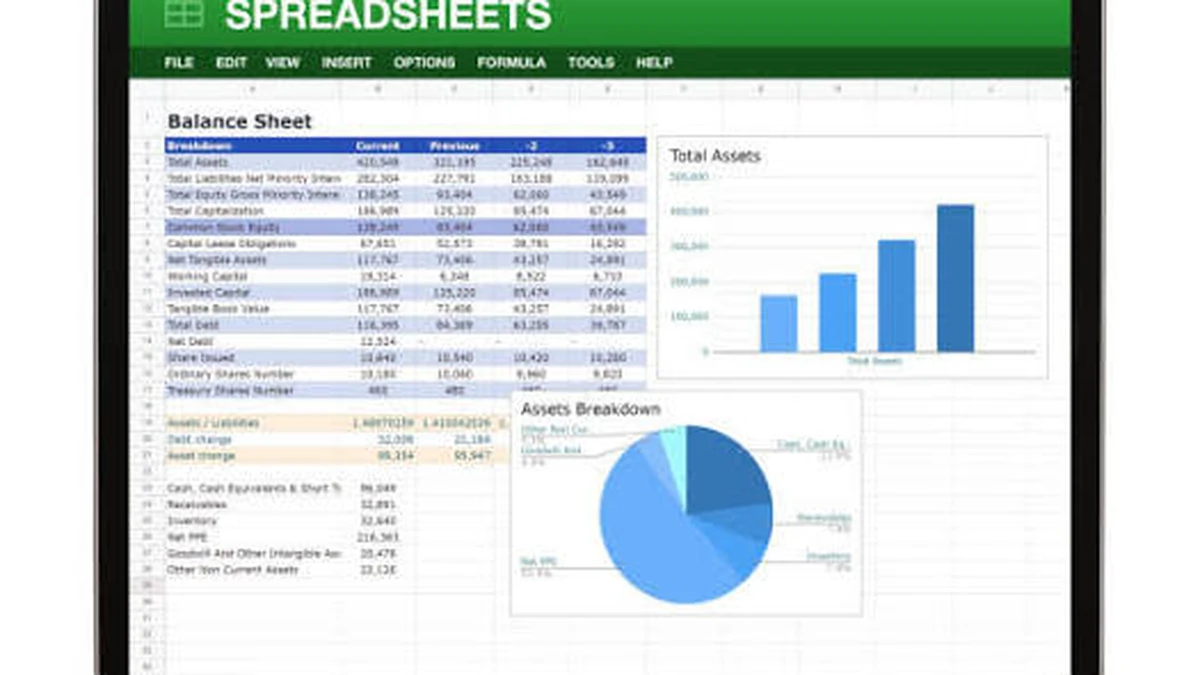

You open a spreadsheet with 40 columns, three broken formulas, and a boss who wants a chart by lunch. This is where AI spreadsheet assistants earn their keep — or don’t.
AI spreadsheet assistants are tools that let you write formulas, clean data, build charts, and analyze workbooks using plain English instead of formula syntax. Some live inside Excel or Google Sheets natively, like Microsoft Copilot and Google Gemini; others are add-ons like Numerous.ai; a few are entirely new spreadsheets built around AI from the ground up, like Rows AI.
That one paragraph is usually where most guides stop being useful. The real question isn’t “what are they” — it’s which category fits the work in front of you, and where each one quietly runs out of road.
What Is an AI Spreadsheet Assistant, Exactly?
Strip away the marketing and an AI spreadsheet assistant does three things: it reads what’s in your workbook, it understands what you’re asking for in normal language, and it either writes a formula, edits cells, or explains what’s already there.
That sounds simple. In practice, the hard part isn’t the language understanding — it’s the spreadsheet part. A tool has to follow cell references across tabs, respect existing formulas without silently breaking them, and know the difference between a header row and a data row. That’s where the gap between tools that feel magical and tools that feel frustrating actually shows up.
Think of it as autocomplete for analysis, not a replacement for judgment. It reduces lookup time and typing time. It does not reduce the need to check the logic before you send the report.
Three Different Kinds of “AI Spreadsheet Tool” — and Why the Difference Matters
Most comparison articles list ten tools in a row and let you sort out the categories yourself. Don’t do that — the category tells you more than the brand name does.
Native AI (Copilot, Gemini)
Microsoft Copilot in Excel and Google Gemini in Sheets ship inside the software you already pay for. No install, no separate login, and — for Gemini — no add-in at all, since it’s built straight into Workspace. Copilot in Excel operates directly on your cells and, on eligible commercial plans, offers a model picker.
The trade-off: native AI is optimized for the common 80% of spreadsheet tasks — formulas, tables, charts, pivots, filtering. For anything unusual, it hits a ceiling fast.
AI Add-Ons (Numerous.ai, Formula Bot, SheetAI, Coefficient)
Add-ons plug into your existing Excel or Google Sheets file rather than replacing it. This matters more than it sounds: you keep your current workflow, your file format, and your team’s habits.
Numerous.ai and Formula Bot are built around in-cell AI functions — you write something like =AI("summarize this row") and it runs across thousands of rows at once, which is exactly the kind of bulk automation native AI tends to handle poorly. Coefficient takes a different angle: it’s a live data connector first, pulling from Salesforce, HubSpot, Snowflake, BigQuery, and Stripe, with an AI layer for formula help and questions about the synced data second.
AI-Native Spreadsheets (Rows AI, Quadratic)
These aren’t add-ons at all — they’re spreadsheets designed around an AI assistant from day one, so the grid, the connectors, and the formulas are built to work together rather than bolted on. Quadratic leans toward code-and-data analysis; Rows leans toward business dashboards. The catch is migration: you’re moving off Excel or Sheets, not layering something on top of them.
What These Tools Are Actually Good At
Across the category, five jobs come up again and again:
- Formula writing — describe the calculation, get the formula with correct cell references, including lookups, conditionals, and text manipulation.
- Data cleaning — removing duplicates, standardizing date and text formats, splitting or merging columns.
- Chart and dashboard building — turning raw rows into a chart or a live dashboard without manually configuring axes and ranges.
- Bulk row automation — running the same AI instruction across hundreds or thousands of rows in one pass, which is where in-cell functions outperform a chat window.
- Explaining what a spreadsheet is doing — pointing at a broken formula or an unfamiliar workbook and asking “what does this actually calculate,” which saves the archaeology work of reverse-engineering someone else’s file.
Quick takeaway: if your task fits neatly into one of these five, almost any tool in the category will help. The differences show up at the edges — big multi-tab workbooks, sensitive data, or anything that needs to plug into systems outside the spreadsheet.
Comparing the Major Players
| Tool | Best for | Where it lives | Watch out for |
|---|---|---|---|
| Microsoft Copilot in Excel | Teams already on Microsoft 365; governed, IT-approved AI | Native in Excel | Not the raw-performance leader — it’s the safe enterprise default |
| Google Gemini in Sheets | Workspace users who want zero setup | Native in Sheets | Wants native Sheets files; .xlsx needs converting first |
| ChatGPT | General-purpose help across Excel and Sheets before committing to a specialist tool | Browser / add-in | Spreadsheet chats don’t share memory with your regular ChatGPT history |
| Claude for Excel | Complex formula audits and polished, presentation-ready workbook output | Excel add-in | Narrower focus than a general chat assistant; best for workbook-specific work |
| Numerous.ai / Formula Bot | Running one AI instruction across thousands of rows | Add-on (Excel/Sheets) | Less useful for one-off, exploratory questions |
| Coefficient | Pulling live data from Salesforce, HubSpot, BigQuery, Stripe into Sheets | Add-on (Sheets) | Its AI layer is secondary to its connector strength |
| Rows AI / Quadratic | Teams willing to migrate to an AI-first spreadsheet | Standalone spreadsheet | Requires leaving Excel/Sheets behind |
Independent testing circulating in 2026 comparison roundups generally puts Claude ahead on complex formula accuracy and audit-style work, ChatGPT as the strongest general-purpose all-rounder, and Gemini as the free, zero-friction pick if you already live in Google Workspace. None of them is a universal winner — the right choice depends on where the work happens, not which name is loudest.
Is It Safe? Data Security and Admin Controls
This is the part most “best AI spreadsheet tools” listicles skip, and it’s the one that actually matters if your spreadsheet has customer names, salaries, or a deal pipeline in it.
When an AI assistant reads or edits your workbook, the data in those cells typically leaves your local environment to be processed by the model. That’s true whether the tool is a native feature or a third-party add-on — the difference is what happens to that data afterward.
- Microsoft 365 Copilot and business/enterprise tiers of ChatGPT generally offer training-data exclusion and stronger contractual protections.
- Consumer and free-tier tools often don’t — read the terms before you paste in anything sensitive.
- Add-ons that request broad account access (to read and write your Sheets, for example) deserve the same scrutiny you’d give any third-party app with access to your inbox.
A reasonable default: assume risk until you’ve confirmed access controls, retention rules, and admin visibility. For regulated data — financial, health, HR — keep a human reviewing the output before it goes anywhere external, regardless of which tool you use.
Pricing, Translated Into Real Usage
Pricing pages change constantly, so treat any specific number as a starting point rather than gospel. What’s more useful is the shape of the pricing:
- Native AI is usually bundled into a Microsoft 365 or Google Workspace subscription you may already be paying for — Copilot’s business tiers commonly land somewhere in the $18–$30 per user, per month range, with add-on pricing above that on some enterprise plans.
- Add-ons tend to have their own separate subscription, often with a free tier that caps out fast once you’re running AI functions across real datasets.
- AI-native spreadsheets and connector-heavy tools (Coefficient-style platforms) often price per data source or per refresh frequency, not just per seat — worth checking if you’re syncing from several systems at once.
The decision rule worth stealing from teams that have already been through this: pay for an add-on when it removes a repeatable bottleneck — live data refresh, standardized cleanup, consistent reporting — not because a new AI feature is fun to try once.
How to Choose the Right One for You
Work backward from the task, not the tool name.
- You mostly need formulas explained or written → start with what’s already in your Excel or Sheets subscription (Copilot or Gemini) before paying for anything extra.
- You need the same AI instruction run across thousands of rows → an in-cell function tool like Numerous.ai or Formula Bot will outperform a chat-based assistant.
- You need live data pulled from Salesforce, HubSpot, or a warehouse into a sheet that stays current → a connector-first tool like Coefficient is a better fit than a general chat assistant.
- You need a complex, presentation-ready financial model audited → Claude for Excel and similar workbook-aware assistants tend to produce cleaner, more reviewable output.
- You’re open to leaving Excel or Sheets behind entirely → an AI-native spreadsheet like Rows AI or Quadratic is worth a real trial, not just a demo click-through.
Mistakes People Make When They Start
A few patterns show up often enough to call out directly:
- Messy headers before asking for analysis. Standardizing column headers first — clear, consistent names, no merged cells — takes a minute and saves far more time than it costs, because the assistant’s accuracy depends heavily on understanding your structure.
- No definition of “done.” Vague prompts get vague results. State what the output should look like — a chart, a specific summary length, a formula versus an explanation.
- Trusting output without checking assumptions. Ask the assistant to explain the ranges and assumptions it used, especially for anything going into a report someone else will rely on.
- Vague naming. If a tool suggests generic tab names like “Sheet1” or “New tab” and you accept them, you’re setting up confusion for the next person who opens the file. Push for structure now.
- Treating every task as chat-shaped. Bulk, repetitive work belongs in an in-cell function or an automation tool, not a back-and-forth conversation — it’s slower and more error-prone the other way.
Conclusion and Next Step
There’s no single best AI spreadsheet assistant — there’s a best fit for the task you’re doing this week. Native AI covers most everyday formula and chart work for free if you already pay for Microsoft 365 or Google Workspace. Add-ons earn their subscription when they remove a specific repeatable bottleneck. AI-native spreadsheets make sense only if you’re genuinely willing to migrate.
Start with what you already have installed, run one real task through it — not a demo — and only add a paid tool once you’ve hit a wall it clearly can’t get past.
STILL HAVE QUESTIONS? EXPLORE MORE HERE FOR OUR FULL LIBRARY OF GUIDES.
FAQ Section
What is an AI spreadsheet assistant?
It’s a tool that reads your spreadsheet data and lets you write formulas, clean data, build charts, or ask analysis questions using plain language instead of formula syntax or manual menus.
Which AI is best for writing Excel formulas?
Independent comparisons circulating in 2026 generally rate Claude for Excel highest for complex formula accuracy and audits, with ChatGPT as a strong general-purpose alternative and Copilot as the native, IT-governed option inside Microsoft 365.
Can AI clean messy spreadsheet data automatically?
Yes — most AI spreadsheet assistants handle removing duplicates, standardizing date and text formats, and splitting or merging columns from a plain-language description, though you should still spot-check the output.
Is Copilot in Excel worth paying for?
It’s worth it primarily if your organization is already on Microsoft 365 and needs governed, IT-approved AI tied to existing identity and compliance controls, rather than the single most powerful spreadsheet AI available.
Does ChatGPT work inside Google Sheets?
Not natively — you can use ChatGPT in a browser alongside Sheets, or use an add-on that embeds it, but Gemini is the AI built directly into Sheets without an add-in.
Are AI spreadsheet tools safe for sensitive data?
It depends on the plan: business and enterprise tiers commonly offer training-data exclusion and contractual protections, while consumer and free tiers often don’t, so check access controls and retention rules before uploading sensitive files.
What’s the difference between an AI add-on and an AI-native spreadsheet?
An add-on plugs AI into your existing Excel or Sheets file, keeping your current workflow; an AI-native spreadsheet like Rows AI or Quadratic is a separate product built around AI from the start, which usually requires migrating your files over.
How much do AI spreadsheet tools cost?
Native AI is often bundled into a Microsoft 365 or Google Workspace subscription you may already have, commonly in the $18–$30 per user monthly range for Copilot business tiers, while standalone add-ons typically have their own separate subscription with a limited free tier.
