
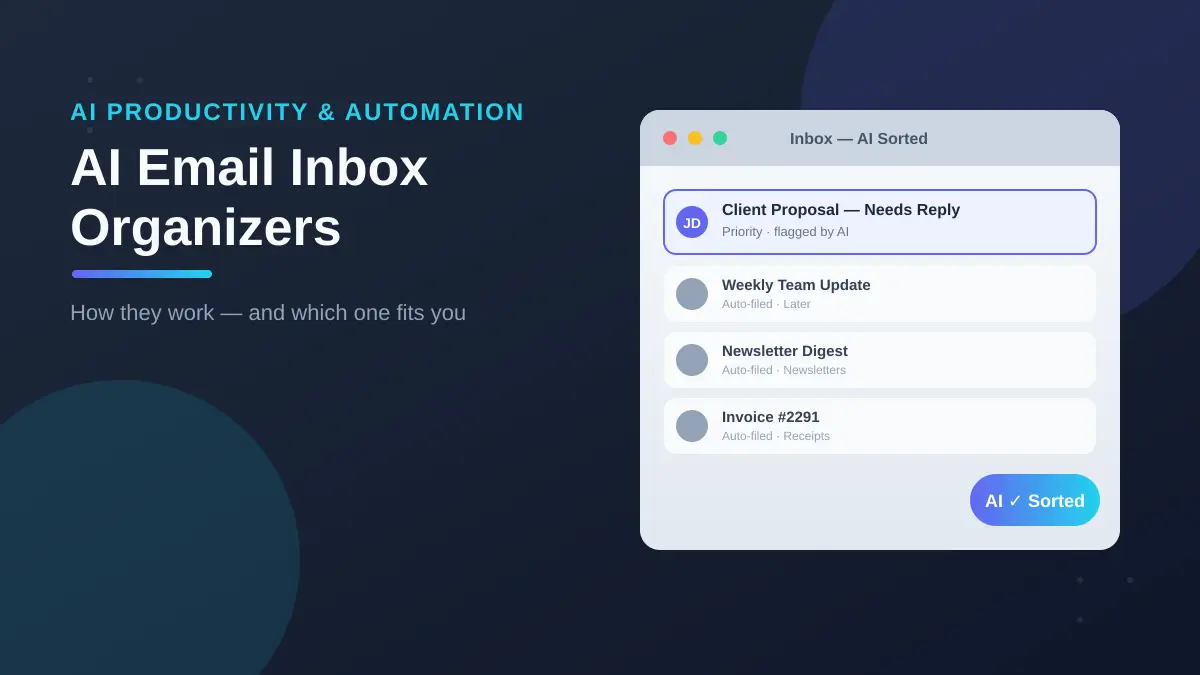

Your inbox doesn’t have a spam problem anymore. It has a decision problem — dozens of messages a day that all need a judgment call before you can get to the three that actually matter. That’s the gap AI email inbox organizers are built to close.
An AI email inbox organizer is software that reads and learns from your incoming mail — not just sender names or subject lines — to automatically sort, prioritize, or filter messages so the important ones surface first. Unlike static rules, it adapts as your habits change, using AI or behavioral learning instead of fixed if-this-then-that logic.
Most people land here after trying folders, filters, and “touch it once” advice, only to find their inbox refills within a day. Below is what these tools actually do, where they differ, and how to pick one without paying for features you won’t use.
What Is an AI Email Inbox Organizer?
The core difference from a traditional filter is simple: a filter runs on fixed conditions (sender X goes to folder Y), while an AI organizer looks at content, context, and your own behavior to make that call — and updates it over time.
That distinction matters because a single sender rarely does one thing. A client might send a proposal, an invoice, and a newsletter signup confirmation in the same week. A static rule treats all three the same. An AI-driven tool is meant to treat them differently, based on what’s actually in the message.
In practice, most tools on the market sit somewhere between two poles:
- Rule-based automation with AI-assisted suggestions — you set the conditions, the tool recommends refinements.
- Behavior-learned sorting — the tool watches which emails you open, ignore, or move, and adjusts its filtering without you writing a single rule.
Neither is strictly “better.” Rule-based tools give you precise, explainable control. Behavior-learned tools save more setup time but need a few weeks to reach full accuracy.
Built-In AI vs. Dedicated Organizer Tools
Before paying for anything, it’s worth checking what your existing inbox already does. Gmail and Outlook have both invested heavily in native AI over the past year.
Google began rolling out Gemini summary cards in the Gmail mobile app, surfacing AI-generated summaries at the top of longer threads and updating them as new replies arrive. Microsoft’s answer is Copilot in Outlook, which can summarize attached files directly in the reading pane and supports rule-style commands like flagging a specific sender going forward.
The practical takeaway: if your organization already pays for Google Workspace or Microsoft 365, test the built-in AI first. It requires no new app, no new permissions grant, and no monthly add-on. Only look at a dedicated third-party organizer if the built-in tools still leave your inbox feeling unmanaged after a real trial period — not after one afternoon.
Dedicated organizers earn their subscription price in one of two ways: either they work across every provider (so you’re not locked into Gmail or Outlook specifically), or they go deeper than native AI is willing to go, like fully autonomous triage or cross-platform context from meetings and chat apps.
How These Tools Actually Sort Your Inbox
Nearly every AI organizer — regardless of brand — follows a similar mechanical process:
- Connect via OAuth or IMAP. You grant access without handing over your password directly.
- Initial scan. The tool reviews a window of recent email — often four to six weeks — to establish a baseline of your patterns.
- Apply first-pass sorting. Messages get routed into categories like “later,” “newsletters,” or “unwanted senders” based on that baseline.
- Learn from corrections. Every time you move something back to your main inbox, or push something out of it, the tool logs that as a signal for future sorting.
- Stabilize. Most tools describe a one-to-two-week window before sorting accuracy plateaus at its best level.
That training window is the part vendor marketing tends to gloss over. It’s normal for the first several days to feel off — an important message lands in a secondary folder, or a newsletter slips through. That’s not a broken tool; it’s a tool that hasn’t seen enough of your corrections yet.
One gap almost no competitor page addresses: AI-generated thread summaries carry a real, documented risk. Security researchers have shown that hidden text embedded in an email can manipulate what an AI summary reports back to you — a technique known as prompt injection. The practical guidance is simple: treat AI summaries as a starting point, not a replacement for opening anything that matters, especially financial or legal correspondence.
Top AI Email Inbox Organizers Compared
| Tool | Core Approach | Best For | Starting Price |
|---|---|---|---|
| SaneBox | Behavior-learned filtering, works invisibly inside Gmail/Outlook/any IMAP client | Ongoing noise reduction without switching apps | ~$7/month |
| Clean Email | Rule-based bulk actions from its own interface | One-time backlog cleanup, bulk unsubscribe | ~$9.99/month |
| Inbox Zero | Open-source, customizable AI automation rules | Technical users who want self-hosted control | Free tier; paid from ~$12/month |
| Lindy | Full AI assistant: triage, drafting, task extraction | Users who want an assistant, not just a filter | Varies by plan |
| Shortwave | AI search, conversation bundling, built-in client | Gmail-heavy users wanting a cleaner interface | Free tier available |
| Agentys | Drafts replies in your voice at scale | High email volume with repetitive reply types | ~$16.99/month |
| Superhuman | Speed-focused client with AI writing tools | Keyboard-driven power users in sales/ops | ~$30–$40/month |
A useful mental model: SaneBox and similar tools solve noise. Clean Email solves backlog. Lindy, Agentys, and full assistants solve the work of reading and replying itself. Most people only have one of these three problems — paying for all three capabilities when you only need one is the most common overspend in this category.
Privacy and Security: What You’re Actually Giving Access To
This is the section most buying guides skip past, and it’s the one that actually determines which tool you should trust with a real inbox.
- Headers-only vs. full content access. Some tools, including SaneBox, scan only email headers — sender, subject, timestamps — and never read the body or attachments. Others need to process full message content to summarize threads or draft replies. Neither approach is automatically wrong, but they carry different risk profiles.
- OAuth over stored passwords. Reputable tools authenticate through OAuth rather than asking for your email password directly, which limits what they can do and lets you revoke access instantly.
- Data training policies. Check whether the vendor uses your email content to train its underlying AI models. Some explicitly state they don’t; others are vague. If it’s not stated clearly on the pricing or security page, treat that as a red flag, not an oversight.
- Google-verification and breach monitoring. A handful of tools carry Google’s verified-app status and include their own breach alerting — worth checking if you handle sensitive client correspondence.
The broader trade-off holds across the category: more automation generally requires broader mailbox access. The right tool is the one that saves real time and feels trustworthy enough to actually connect.
READ MORE: AI Meeting Note Takers: What They Actually Do and Which One Is Worth Using in 2026
Which One Fits Your Actual Problem
Skip the marketing copy and start with the honest version of your problem:
- “My inbox has too much noise, but I don’t need help writing replies.” Start with SaneBox-style behavior-learned filtering, or your provider’s built-in AI first.
- “I have years of backlog I need to clear.” A bulk-action, rule-based cleanup tool solves this faster than an ongoing filter will.
- “I write 40+ similar replies a day.” Look at drafting-focused assistants that can match your tone, not pure sorting tools.
- “My team loses context between meetings, chat, and email.” A cross-platform assistant that connects those channels solves a context problem, not a volume problem — sorting tools won’t help here.
- “I’m not sure my current inbox even needs a new tool.” Check what Gmail or Outlook already does natively before adding a subscription on top of it.
How to Set One Up Without Wrecking Your Inbox in Week One
- Connect your busiest account first, not a lightly used secondary one — testing with low volume won’t show you real accuracy.
- Give it the full trial window. Most vendors offer 14 days; use all of it before judging results.
- Correct actively in week one. Move misfiled emails back manually — this is what trains the model fastest.
- Don’t turn on aggressive auto-delete or auto-archive rules immediately. Wait until sorting accuracy has stabilized.
- Review permission scope before connecting, especially for shared or team mailboxes, where a tool’s access might extend further than you expect.
- Re-evaluate after 30 days, not 3. Early impressions in this category are notoriously unreliable — tools that look great on day one sometimes stop following your corrections by week two.
A calmer inbox isn’t really about the tool. It’s about reducing how many decisions you make per message. Whichever tool you pick, that’s the metric to judge it against.
STILL HAVE QUESTIONS? SEE MORE TECH EXPLAINERS FOR OUR FULL LIBRARY OF GUIDES.
FAQ Section
What is an AI email inbox organizer?
It’s software that automatically sorts, filters, or prioritizes your incoming email using AI or behavioral learning rather than fixed rules, so higher-priority messages surface first without manual filing.
Is an AI email organizer safe to connect to my inbox?
Most reputable tools use OAuth rather than storing your password, and several scan only headers, not full message content. Always check the vendor’s data-training policy before connecting a primary account.
Do AI email organizers read the actual content of my emails?
It depends on the tool. Some, like SaneBox, only scan headers. Others need full content access to summarize threads or draft replies. Check each vendor’s security page for specifics.
How long does it take for an AI organizer to learn my inbox?
Most tools need one to two weeks of active use, including manual corrections, before sorting accuracy stabilizes at its best level.
What’s the difference between SaneBox and Clean Email?
SaneBox works invisibly inside your existing inbox using AI-learned filtering for ongoing triage. Clean Email operates through its own interface for rule-based bulk cleanup of existing backlog.
Can I use an AI email organizer with both Gmail and Outlook?
Many tools, including SaneBox and Clean Email, support both through IMAP or OAuth. Some, like Notion Mail, currently support Gmail only, so confirm compatibility before subscribing.
Are AI email organizers worth the monthly cost?
For anyone handling 50+ emails daily, most users report meaningful time savings, often several hours per week, once the training period is complete. Light email users may find built-in provider AI sufficient.
What’s the biggest risk with AI-generated email summaries?
Hidden text within an email can be used to manipulate what an AI summary reports, a known technique called prompt injection. Treat summaries as a starting point and verify anything important in the original message.
